Smart Map - AI Column Mapping
What this is
Smart Map reads the worksheets you chose and works out which cells hold which HMRC figures, so you do not have to lay your workbook out the HMRC way. It suggests; you check and apply. The amounts themselves are always read from your cells, never invented, and nothing is sent to HMRC until you have reviewed every figure on the next step.
What you see on screen
Smart Map runs as soon as your file is read. A Smart mapping your spreadsheet dialog ticks through Reading your sheets, Matching HMRC fields and Checking the amounts, with the reminder that Smart Map is AI and can make mistakes.
Then Here’s what we found opens: “We scanned your spreadsheet and matched 12 values to HMRC fields. Check the amounts look right, then apply.” It shows:
- Overall confidence with a count of strong, likely and needs-checking matches
- Which worksheet the figures came from
- Why these matches, expandable
- One row per match: a tick box, the HMRC field (for example Turnover), the worksheet and cell it came from, the amount, and View to jump to that cell in the preview
- How many HMRC fields were not found, which you can map by hand afterwards
- I’ll do it manually, Re-run Smart Map, Apply all N, and Apply N selected if you have unticked any
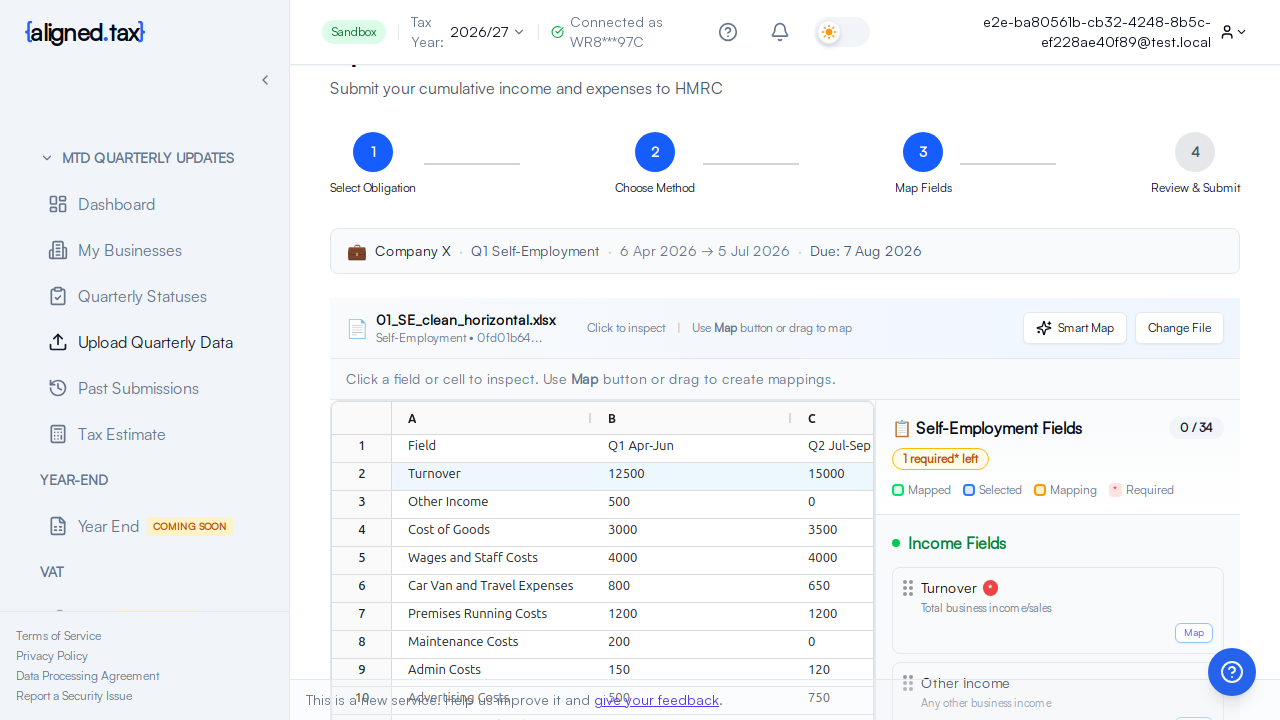
Behind the dialog is the mapping screen: your spreadsheet as a grid on the left, the HMRC Fields for this income type on the right with “0 of 1 required” and a legend for mapped, selected and mapping cells. Change worksheets and Change File sit at the top; the Smart Map button reopens the suggestions. Once mappings are applied the dialog offers Continue to review.
How to use Smart Map
Accept the suggestions
- Read each row. Click View on any you want to see in the grid.
- Untick any match that is wrong.
- Click Apply all (the button counts the matches, for example “Apply all 12”), or Apply with the number you left ticked.
- Click Continue to review.
Map a field by hand
- Close the dialog, or click I’ll do it manually.
- In Fields on the right, click the field you want to fill. The required ones, such as Turnover, are marked.
- Click the cell in the grid that holds the figure. Press Done when the field is complete.
- Repeat for any other fields, then continue to review.
Try again
Click Re-run Smart Map after changing the worksheet selection or the file. “Closing this window keeps your results - reopen any time with the Smart Map button.”
Things to know
- Smart Map reads numbers, it does not write them. Every figure that reaches the review screen is the value of a cell in your workbook. If a suggestion points at the wrong cell, untick it and map by hand.
- Labels matter more than layout. A figure with a recognisable label next to it (“Turnover”, “Rent received”, “Repairs”) maps well. Unlabelled numbers or a sheet of individual transactions do not; export a summary sheet instead.
- Only the worksheets you confirmed are read. If a figure is missing, check whether its sheet was ticked; use Change worksheets.
- Consolidated or detailed expenses. For self-employment, one expense total is fine if turnover is under £90,000 this year and was under £90,000 last year. Above that HMRC needs the detailed categories, and the review screen tells you which mode applies.
- Foreign property does not use Smart Map. It uses the structured template; the upload step says so for that income type.
- What Smart Map sees. The worksheets you chose are sent to the AI model with personal details removed. Your NINO, names and addresses are not part of the mapping request.
If something goes wrong
Smart Map found nothing, or very little. The sheet has no labels the model recognised. Add a label next to each figure, or choose a different worksheet with Change worksheets, then Re-run Smart Map.
A required field is still empty after applying. Map it by hand from Fields. The review step will not let you continue with a required field missing.
The amounts look wrong. Click View to see the cell. Common causes are a totals row that includes VAT, a column of previous-year figures next to this year’s, or a cell that holds text rather than a number.
Smart Map keeps mapping the same wrong cell. Untick it and map by hand. The next upload of the same layout learns from your correction.
FAQ
Does Smart Map submit anything?
No. It only proposes which cells map to which fields. Submission happens after you have reviewed the figures and ticked the declaration.
Can I skip Smart Map entirely?
Yes. Click I’ll do it manually and map each field from the grid.
Is my data used to train the model?
No. The request is made through a provider setting that does not retain or train on the content.