Uploading a Spreadsheet
What this is
Every quarterly update starts with a spreadsheet. You choose the quarter, upload the XLSX workbook you already keep your records in, tell aligned.tax which worksheets belong to the business, and Smart Map reads the figures. There is no form to type figures into, on purpose: Making Tax Digital requires a digital link from your records to what is filed.
What you see on screen
Quarterly updates in the sidebar opens File a quarter, “Choose the quarter you want to file”. Each business is a card listing its quarters with the period, due date, an Upload Data button on the quarter that can be filed, and Locked with “Submit earlier obligations first” on later ones. A note explains that each submission covers from the start of the tax year to the selected period end date.
Choosing a quarter opens File quarter 1 (or 2, 3, 4) with the period, business and due date under the title, and a three-step rail: Your spreadsheet, Check your figures, Send to HMRC.
The first step, Upload Your Spreadsheet, shows:
- Get the best result from Smart Map - upload your whole workbook or just the relevant worksheet, with an expandable How to export just that sheet for Google Sheets and other apps
- A note that HMRC’s rules ask for a digital link between your records and what you file, so figures are not retyped, with a link to How HMRC digital records work
- What the update needs, in plain terms: Money in (your income for the period, one figure or several) and Money out (your expenses; one single total is fine if turnover is under £90,000)
- Nothing to report this period? Enter 0 in the value cells for a nil update; a blank cell reads as no data
- Prefer our templates? with Download the summary template for the income type
- The upload area: drag a file in or click to choose one
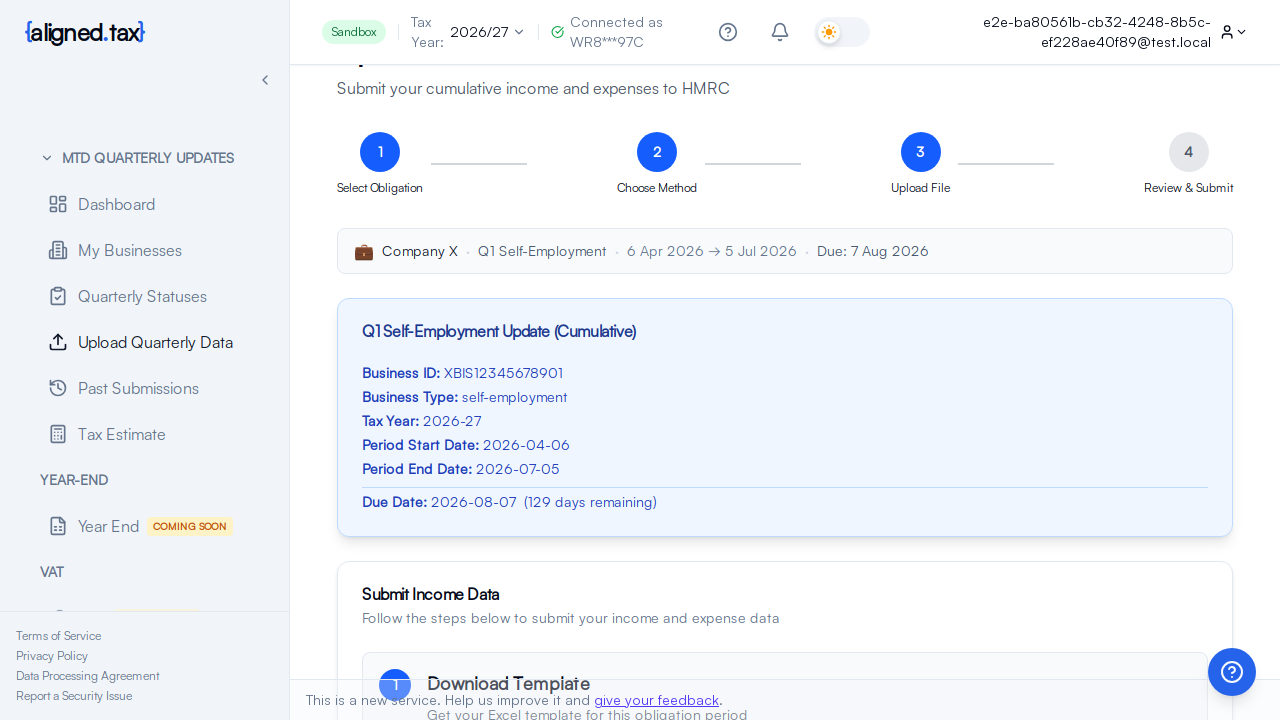
After the file is read, if the workbook has more than one worksheet you are asked to Confirm worksheets: “Choose the worksheets that belong to this business. You can select more than one.” Each sheet is labelled as a likely summary or as instructions, settings or transaction detail. Smart Map then opens with its suggestions.
If you left a quarter part-way through, File a quarter shows Continue where you left off with the draft, so you can pick it up or discard it.
If you’re an accountant
The upload is always for the client shown in the header switcher. Change client first, then open Quarterly updates. See Working in a client’s context.
How to upload
- Check the Tax Year in the header, and for agents the client switcher.
- Open Quarterly updates and click Upload Data on the quarter you are filing.
- Drop your XLSX workbook onto the upload area or click it to choose the file. It must be an XLSX file of 20 MB or less.
- If asked, tick the worksheets that belong to this business and click Confirm worksheets.
- Review what Smart Map found and apply it. See Smart Map.
- Continue to Check your figures, then Send to HMRC.
Things to know
- XLSX only, for financial data. Save or export from Google Sheets (File, Download, Microsoft Excel), Apple Numbers (File, Export To, Excel), LibreOffice Calc (Save As, Excel 2007-365) or any other app before uploading. CSV and the older XLS format are not accepted, and a renamed file is rejected when it is opened.
- 20 MB is the limit. Larger workbooks usually contain sheets that are not needed; export just the relevant sheet.
- Only the quarter that is open can be filed. Earlier quarters must be filed first and a period that has not ended is not offered.
- Every update is cumulative. Your workbook for Q2 should contain the year-to-date figures, 6 April to the end of Q2, not July to October alone. See Cumulative Quarterly Updates.
- A nil quarter is still filed. Put 0 in the figure cells; HMRC accepts an all-zero update.
- Your workbook is kept as your digital record unless you untick Save spreadsheet for audit trail at the review step.
- The template is optional. Smart Map reads your own layout. The summary template is a starting point if you have no workbook yet.
If something goes wrong
| What you see | Why | What to do |
|---|---|---|
| “Please save or export your file as XLSX before uploading” | The file is CSV, XLS or another format | Export as XLSX and upload again |
| The file is refused as too large | Over 20 MB | Export only the relevant worksheet |
| “This worksheet has no data to map” | The selected sheet is empty or contains only text | Tick the worksheet with the figures |
| Smart Map found nothing | The figures are not labelled, or the sheet is transaction detail | Add labels next to the figures, or export a summary sheet; see Smart Map |
| No quarter has an Upload Data button | Every quarter for the selected year is filed, locked or not yet open | Check the Tax Year in the header and the dates on the cards |
FAQ
Can I upload several quarters at once?
No. One upload files one quarter. Because updates are cumulative, the later quarter’s workbook already includes the earlier ones.
Do I have to use the aligned.tax template?
No. Upload your own workbook; Smart Map maps it. The template exists for people starting from nothing.
I already filed this quarter. Can I upload again?
Yes. A new upload for the same quarter replaces the figures HMRC holds. See Correcting a Submitted Quarter.