Reviewing Before You Submit
What this is
Check your figures is the last look before anything reaches HMRC. It shows exactly what will be sent, field by field, with the totals, the period it covers and the declaration you have to tick. Nothing leaves aligned.tax until you click Submit to HMRC on this screen.
What you see on screen
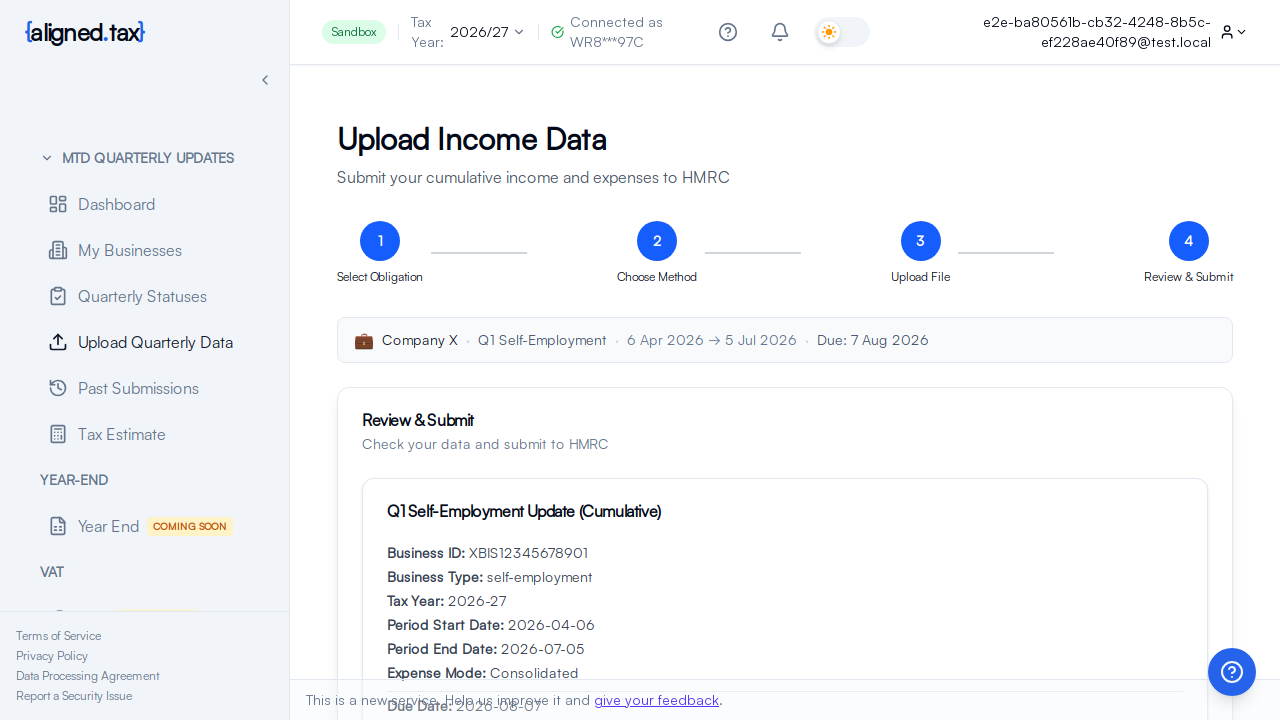
The step is headed Review & Submit, “Check your data and submit to HMRC”, and shows:
- A card naming the update, for example Q1 Self-Employment Update (Cumulative), with Business ID, Business Type, Tax Year, Period Start Date, Period End Date, Expense Mode (Consolidated or Detailed), Accounting Type and Due Date
- The income figures and the expense figures, each with the HMRC field name and the amount read from your workbook, and the totals HMRC will see (for self-employment, Total Taxable Income and Total Allowable Expenses)
- Any warnings about the figures, inline next to the value they concern
- Save spreadsheet for audit trail, ticked by default
- Before you submit: once submitted the data is sent to HMRC and recorded against the tax record for the year; you can submit updated figures later, and HMRC may use the data in its tax calculation
- The declaration checkbox: “I confirm this data is accurate and authorise submission to HMRC” (agents: “… and I am authorised to submit on behalf of” the client)
- Back and Submit to HMRC
How to review
- Check the card at the top: right business, right tax year, right period. The period always starts on 6 April because updates are cumulative.
- Read every figure against your workbook. Click Back to change a mapping if one is wrong.
- Read any warnings. Some are advice; some block submission until fixed.
- Decide whether to keep the workbook. Leave Save spreadsheet for audit trail ticked unless you have a reason not to.
- Tick the declaration and click Submit to HMRC.
What HMRC accepts
- Amounts are numbers in pounds and pence, at most two decimal places. Currency symbols, thousands separators and text such as “N/A” are rejected.
- Each amount must be between minus £99,999,999,999.99 and £99,999,999,999.99.
- An update whose figures are all zero is valid. A quarter with nothing to report is filed, not skipped.
- Only one figure is required for a UK property update: rental income. For self-employment, turnover. Every other category is optional and an empty one is left out.
Consolidated or detailed expenses
Self-employment expenses can go to HMRC as one Consolidated Expenses total, but only while turnover for the business is below £90,000 this tax year and did not reach £90,000 last tax year. Above that, HMRC requires the detailed categories, and sending both a consolidated total and detailed categories is rejected. Expense Mode on the card shows which applies.
UK property categories
Income: Rental Income, Premiums of Lease Grant, Reverse Premiums, Tax Deducted, Other Income and Rent a Room rents received. Expenses: Premises Running Costs, Repairs and Maintenance, Financial Costs, Professional Fees, Cost of Services, Travel Costs, Other Expenses, Residential Financial Cost, Residential Financial Costs Carried Forward and Rent a Room amount claimed.
Things to know
- The figures are the year to date. A Q2 review shows 6 April to 5 October in full. If it shows only Q2’s own totals, your workbook is not cumulative; see Cumulative Quarterly Updates.
- There is no time limit on this screen. If you leave, the draft is kept and offered as Continue where you left off on File a quarter.
- The totals are computed from your mapped cells and are exactly what is sent. Nothing is rounded or adjusted.
- The declaration is yours. Agents confirm they are authorised to submit for the named client; HMRC holds the agent responsible for the accuracy of what is sent.
If something goes wrong
A total looks wrong. Click Back and use View in the Smart Map dialog to see which cell each figure came from. The usual culprits are a totals row that double counts, or last year’s column mapped instead of this year’s.
A category is missing. No cell was mapped to that HMRC field. Go Back and map it from Fields.
A warning says a figure cannot be negative. Some HMRC fields do not accept negative values. Check whether the sign is intended; if it is, the figure belongs in a different field.
Submit to HMRC is disabled. Either the declaration is not ticked, a required field is empty, or a blocking warning is showing.
FAQ
Can I save the review and come back later?
Yes. The draft is kept and shown on File a quarter as Continue where you left off.
Are the figures inclusive of previous quarters?
Yes, always. Each update replaces what HMRC holds for the year so far.
What happens if I submit with a warning showing?
Advisory warnings do not block submission; blocking ones disable Submit to HMRC until fixed. The screen tells you which is which.