Submitting to HMRC
What this is
Clicking Submit to HMRC on the review screen sends the year-to-date figures to HMRC’s Making Tax Digital service. HMRC answers within seconds with a receipt, aligned.tax shows the Quarter is filed screen, and the update appears in Past submissions. That receipt is your proof of filing.
What you see on screen
After Submit to HMRC the button reads Submitting… while HMRC responds. On success:
- Quarter 1 is filed (or the quarter you sent), with the time HMRC accepted it and the receipt reference, and what is due next
- A note that the receipt is your filing confirmation and that it can take up to an hour for the obligation to show as fulfilled
- Back to home and View receipt
- What you just did: the file you uploaded, the fields confirmed with the income and expense totals, and the update submitted to HMRC
- For a first update, a Setup complete banner with the next deadline
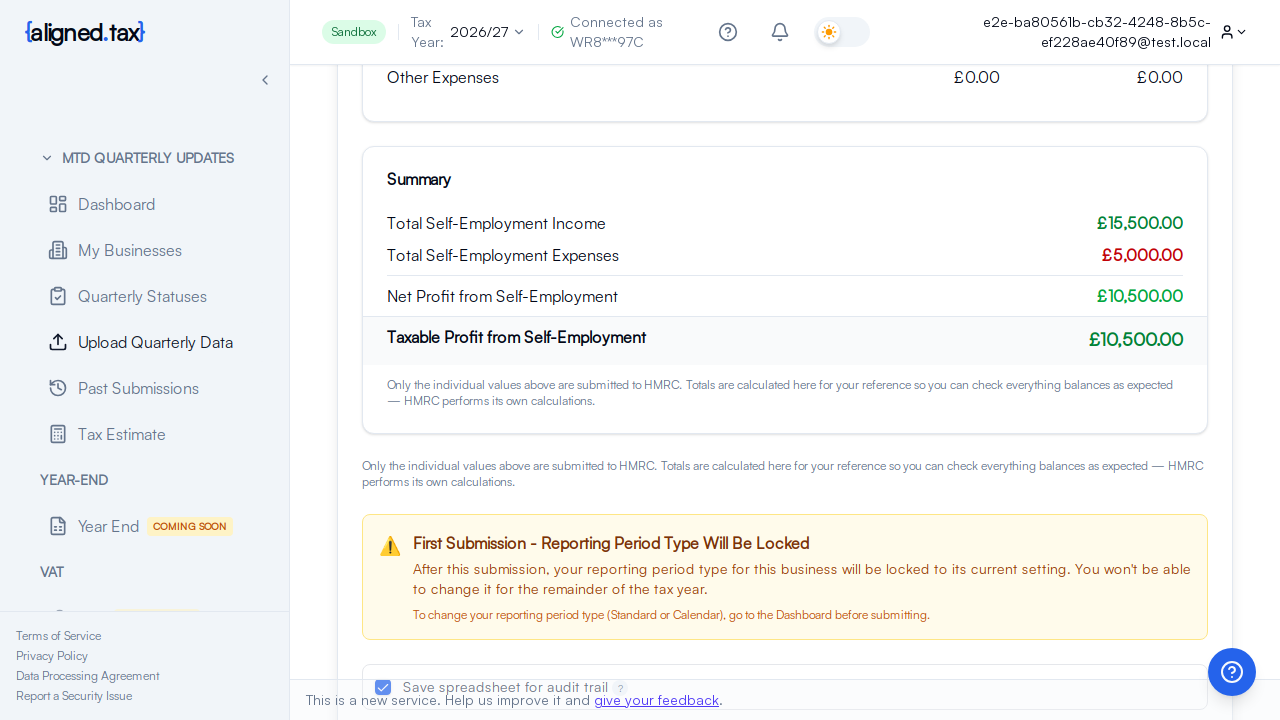
If HMRC rejects the update, the review screen stays open with HMRC’s error and what to change. Nothing is recorded as filed.
How to submit
- On Review & Submit, tick the declaration.
- Click Submit to HMRC.
- Wait for Quarter is filed. Do not click again or close the page while it says Submitting….
- Click View receipt to see the full breakdown, or Back to home.
Things to know
- The receipt reference is HMRC’s. It is shown on the success screen and kept with the submission in Past submissions, where you can also download the receipt as a PDF.
- Fulfilment lags acceptance. HMRC accepts immediately but can take up to an hour to mark the obligation fulfilled. Home and Quarterly Statuses show Filed or Fulfilled after a refresh once HMRC has caught up.
- You can submit again for the same quarter. A later submission for the same period replaces the figures HMRC holds. See Correcting a Submitted Quarter.
- Filing in order. HMRC will not accept a quarter while an earlier one for the same business and year is outstanding, and will not accept a period that ends before the last one you filed.
- Agents submit under their own authorisation. The declaration on the review screen names the client; the receipt is stored against that client.
- Your workbook is kept as the digital record behind the submission unless you unticked Save spreadsheet for audit trail.
If something goes wrong
HMRC rejected the submission. The message names the rule. The common ones, and what to do, are in HMRC Error Codes and What They Mean. Fix the workbook or the mapping and submit again.
The page timed out or lost connection. Do not immediately resubmit. Open Past submissions: if the update is there with a receipt, HMRC received it. If not after a few minutes, submit again.
HMRC says the period is invalid. The dates come from the obligation HMRC issued. Refresh obligations from Home or Quarterly Statuses and choose the quarter again.
HMRC says an earlier quarter is outstanding. File the earlier quarter first; the later one is locked until then.
FAQ
Is the submission final?
For that quarter, yes, until you submit again. A later submission for the same period replaces it. The year is finalised separately, after the fourth quarter, in a step that is not yet part of aligned.tax.
How do I know HMRC really received it?
The receipt reference on the success screen comes from HMRC. Quarterly Statuses shows Fulfilled with a received date once HMRC has processed it.
Do I get an email?
If Submission Results is switched on in Settings, aligned.tax emails a confirmation when a submission succeeds or fails.