Your First Login as an Accountant
What this is
The first time you sign in as a tax agent you land on the Practice workspace, empty apart from a four-step setup card. Follow the card in order: connect your HMRC Agent Services Account, confirm your Agent Reference Number, add your first client, and wait for that client to authorise you. After that the workspace fills with your clients and what each one needs next.
What you see on screen
After mobile verification, the Practice workspace at /app/workspace shows:
- A Set up your practice card, “Four steps and you are ready to file for clients”:
- Connect your agent account - “Sign in with your HMRC Agent Services Account. We use a secure connection and never see your password”, with a Connect to HMRC button
- Your Agent Reference Number, shown as Not connected until step 1 is done
- Add your first client
- Your client authorises you
- HMRC invitations, Add Client and Import clients buttons at the top
- A Refresh all HMRC data button, disabled until you are connected
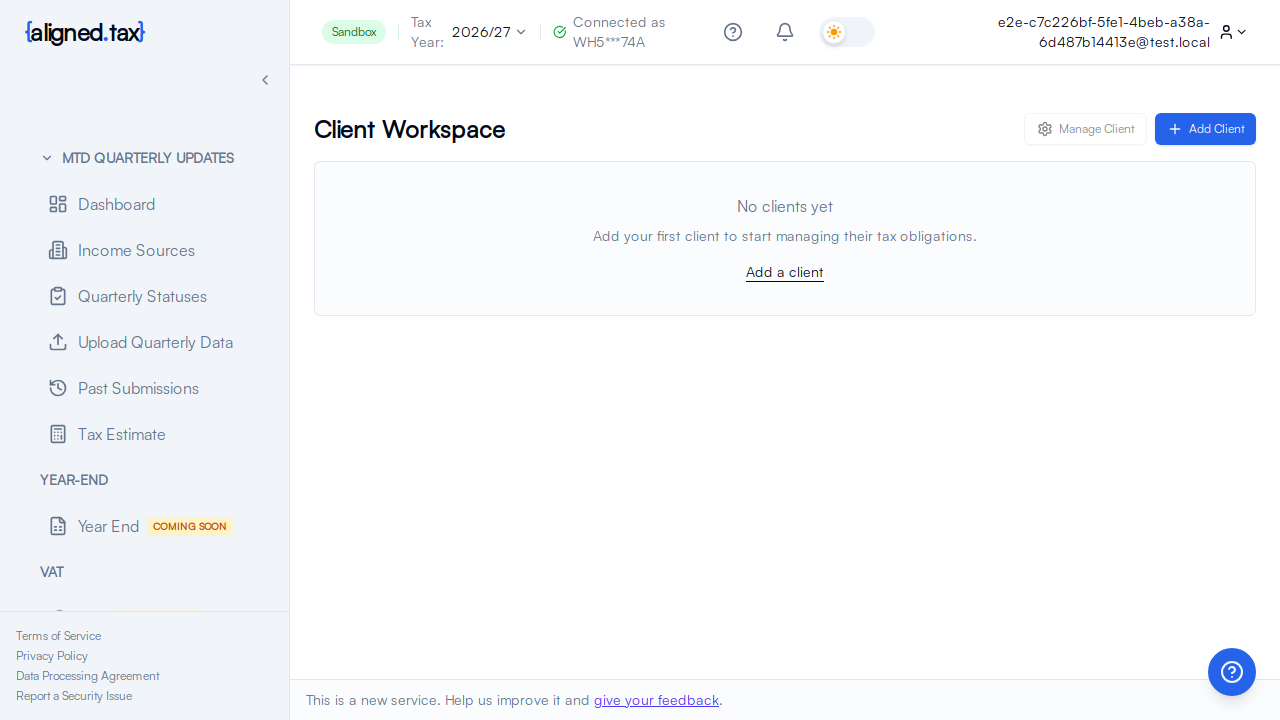
- The header, with the tax year selector, an HMRC status chip (Not connected at first), Get help, the HMRC messages bell and your account menu
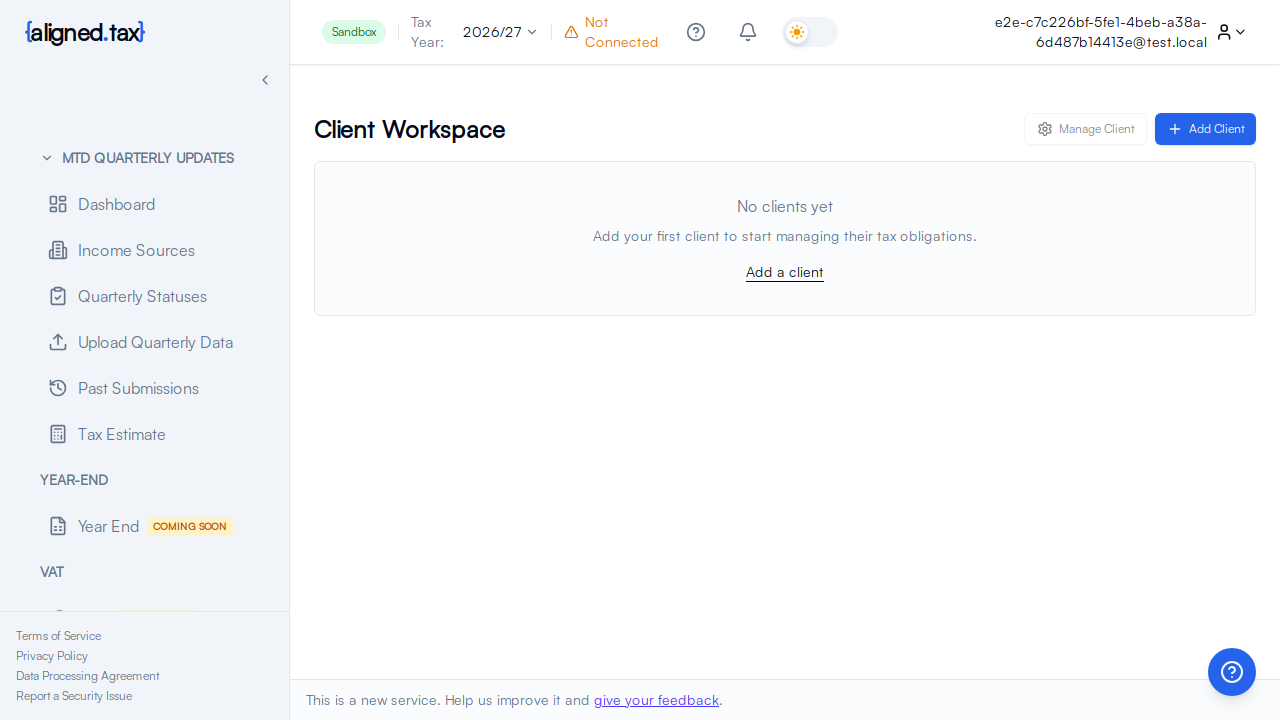
The sidebar’s MTD QUARTERLY UPDATES section holds Dashboard, Income Sources, Quarterly Statuses, Quarterly updates, Past Submissions and Tax Estimate. The aligned.tax logo at the top always returns you to the workspace.
How to get started
- Click Connect to HMRC on the setup card. The Get Started with HMRC page opens.
- Choose I’m an agent filing for clients, enter your Agent Reference Number (the format is one letter, ARN, then seven digits, for example XARN1234567) and click Connect to HMRC.
- Sign in at HMRC with the Government Gateway user ID for your Agent Services Account and give aligned.tax permission. HMRC sends you back to the workspace, which now shows HMRC ready in the header.
- Click Add Client. Enter the client’s name, email, National Insurance number and postcode, then click Add Client again. See Adding a Client. If you have a list of clients, use Import clients instead; see Importing Clients.
- On the client’s page, send the HMRC invitation. Your client approves it through their own Government Gateway sign-in. See Authorising a Client with HMRC.
- Once HMRC confirms the relationship, choose the client in the header switcher, open Quarterly updates, pick the open quarter and upload their spreadsheet.
Things to know
- Use your Agent Services Account, not your personal Government Gateway. The connection must be made with the credentials that carry your ARN.
- Adding a client needs the HMRC connection and your ARN first. The Add Client form is greyed out with a “Connect to HMRC first” notice until then.
- The client’s postcode must match HMRC’s records. aligned.tax asks HMRC about the client before creating them, so a wrong postcode stops the client being added rather than failing later.
- HMRC may already know the relationship. If you already act for the client through your Agent Services Account, aligned.tax records it as authorised without an invitation.
- Invitations expire after 21 days. The workspace shows how many days are left and lets you resend the email.
- There is no client limit. Add as many clients as your practice looks after.
FAQ
Where do I find my ARN?
In your HMRC Agent Services Account. If you do not have one yet, see gov.uk.
Can I import my client list from another system?
Yes. Import clients takes a spreadsheet using the aligned.tax template. See Importing Clients.
What if my client has not authorised me yet?
They stay in the workspace with the status Waiting for the client and a Resend invitation email action. You cannot see their HMRC data or file for them until HMRC confirms the relationship.
I file my own return as well as clients’. Do I need a second account?
No. Add yourself as a client.