Your First Login
What this is
The first time you sign in as an individual, aligned.tax walks you through a short setup wizard: verify your mobile number, connect to HMRC, and file your first update. When the wizard is done, or if you skip ahead, you land on Home, which tracks the same steps until they are complete.
What you see on screen
The setup wizard has a rail on the left with four steps:
- Create your account - already ticked
- Secure your account - verify a mobile number by text message
- Connect to HMRC - “So we can fetch your deadlines”
- File your first update - “Upload a spreadsheet, we do the rest”
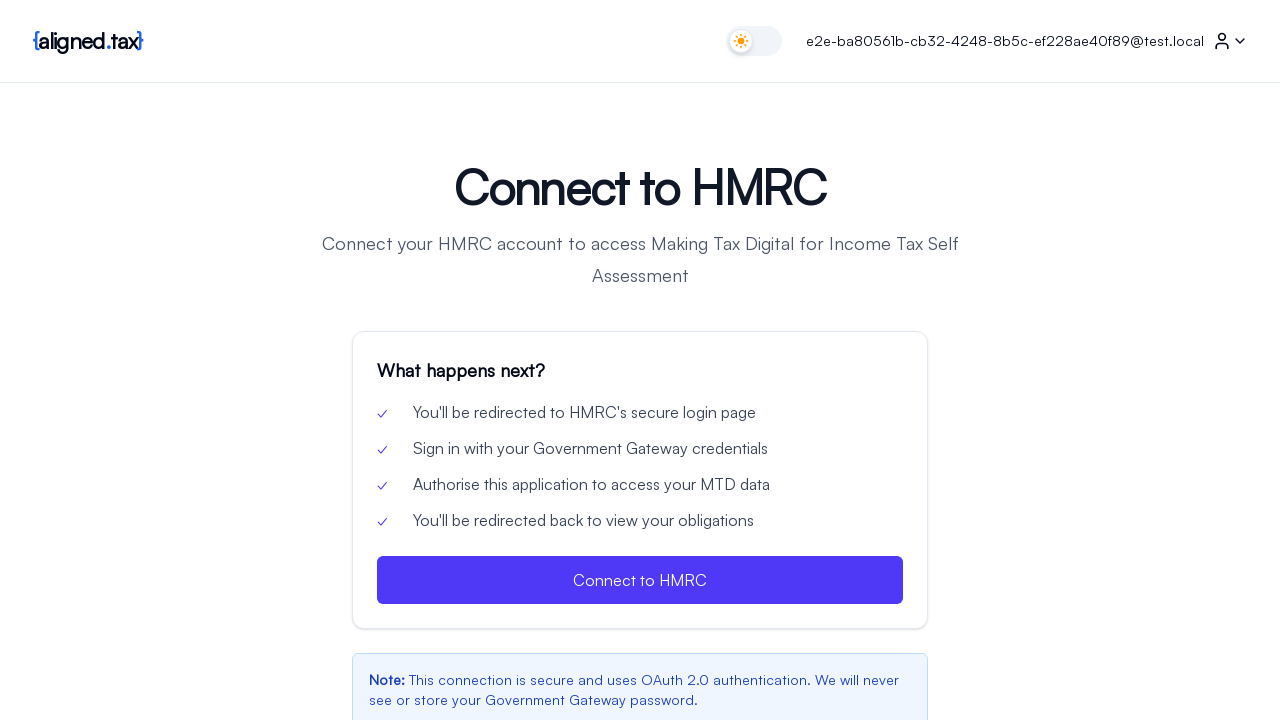
The Connect your HMRC account step shows a National Insurance number field, a “What happens next” list (sign in at HMRC, we fetch your businesses and deadlines, you come back here ready to file), the Connect to HMRC button, and an I’ll do this later link.
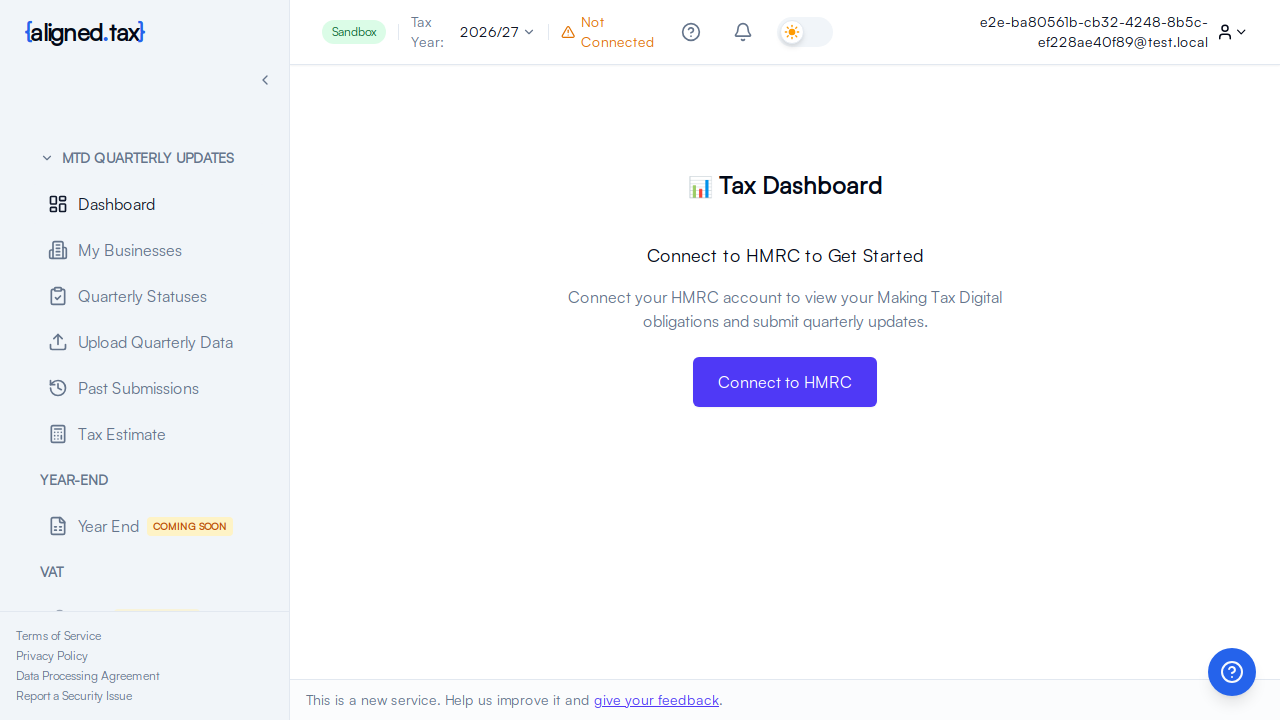
Home, until setup is complete, shows a You’re nearly set up checklist with a progress bar: create your account, verify your mobile, connect to HMRC, check your HMRC data, file your first quarterly update. Each step has its own action button.
How to get started
- Sign in with the email address and password you registered.
- Secure your account: enter your mobile number, click Send verification code, then type the code from the text message. Tick Remember this device so you are not asked again on it.
- Connect to HMRC: enter your National Insurance number in the format AB 12 34 56 C and click Connect to HMRC. You are sent to HMRC to sign in with your Government Gateway user ID and password and give aligned.tax permission. HMRC then sends you back.
- Wait on the progress screen while aligned.tax checks your MTD status, fetches your businesses and loads your quarterly obligations.
- File your first update: open Quarterly updates in the sidebar, choose the quarter that is open, upload your spreadsheet and follow the three steps to send it. See Uploading a Spreadsheet.
If you click I’ll do this later at the HMRC step, Home keeps the checklist and a Connect to HMRC button until you come back to it. Nothing about your deadlines can be shown until HMRC is connected.
Things to know
- You need a Government Gateway account registered for Self Assessment. If you do not have one, create it at gov.uk before connecting.
- Your Government Gateway password never touches aligned.tax. You type it on HMRC’s own site. aligned.tax receives an authorisation token, nothing more.
- Mobile verification is about your account, not HMRC. It protects your sign-in. If you cannot receive text messages, use Request account recovery on the verification screen.
- The tax year selector in the header defaults to 2026/27, the first Making Tax Digital for Income Tax year. Check it before you upload anything.
- HMRC’s sign-in may add an identity check. HMRC sometimes asks extra questions during sign-in. That is HMRC’s process, not aligned.tax’s.
FAQ
What is Government Gateway?
It is HMRC’s sign-in service. If you already file Self Assessment online, you have one. If not, create one at gov.uk.
Why does aligned.tax need my permission with HMRC?
Making Tax Digital requires that software acting for you has your explicit consent. The Government Gateway step records that consent with HMRC.
My HMRC connection stopped working. What now?
Authorisation tokens expire. When that happens the header shows Not connected and you are taken to a Reconnect to HMRC page with your National Insurance number already filled in. Click through HMRC’s sign-in again and everything carries on where it was.
Can I file for more than one business?
Yes. Every business HMRC holds for you appears under My businesses, and each has its own quarters.