Navigating the App
What this is
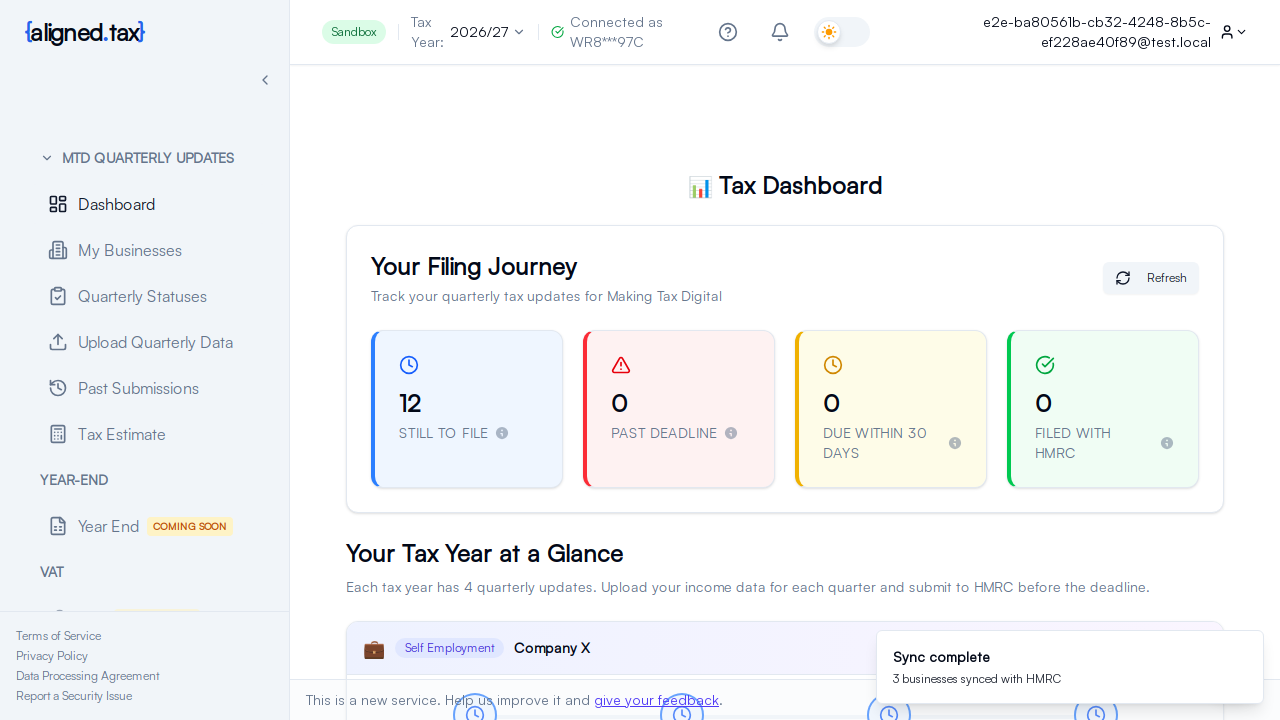
Every signed-in screen has the same frame: a dark sidebar on the left for moving between sections, a header along the top for the things that change what you are looking at (tax year, client, HMRC status), and the page itself in the middle. Accountants and individuals get the same frame with different labels.
The sidebar
The sidebar lists the sections for your account type. The current page is highlighted. Click the small arrow at the top of the sidebar to collapse it to icons; hover an icon for its name. The collapsed state is remembered.
If you’re filing for yourself
- Home - your dashboard: setup checklist, then your quarters and deadlines
- Quarterly updates - choose a quarter and upload your spreadsheet (the badge shows how many quarters are still to file)
- My businesses - the income sources HMRC holds for you
- Past submissions - everything you have filed, with receipts
- Tax estimate - outside the quarterly-update journey this help covers
- Help - opens the help assistant
- Settings - your account, HMRC connection and notifications
If you’re an accountant
The sidebar groups the quarterly journey under MTD QUARTERLY UPDATES:
- Dashboard - the practice workspace, your home screen
- Income Sources - the selected client’s businesses
- Quarterly Statuses - the selected client’s obligations and whether HMRC has received each one
- Quarterly updates - choose a quarter and upload the selected client’s spreadsheet
- Past Submissions - the selected client’s filing history
- Tax Estimate - outside the quarterly-update journey this help covers
Clicking the aligned.tax logo returns you to the Practice workspace. Settings is in the account menu at the right of the header.
The header
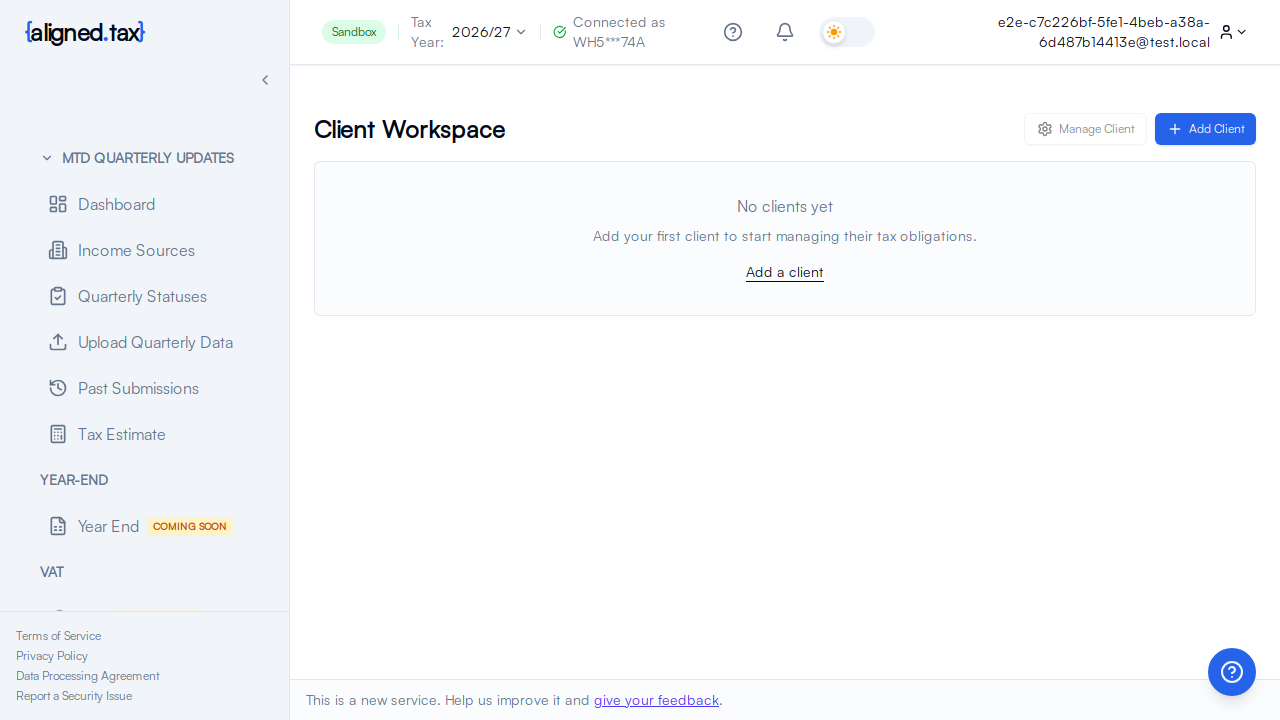
From left to right:
- Tax Year - a dropdown that sets the year every screen shows. It defaults to 2026/27, the first Making Tax Digital for Income Tax year, and never offers an earlier year. Change it before you look at obligations or upload data for another year.
- HMRC status chip - Not connected, HMRC ready, or HMRC connected for followed by a masked National Insurance number. Click it when something is wrong; it explains what HMRC said.
- Client switcher (agents only) - a button showing the client you are working on. Open it to switch. Income Sources, Quarterly Statuses, Quarterly updates and Past Submissions all follow this choice.
- Get help - opens a form to send a message to a person at aligned.tax, with the page you were on attached.
- HMRC Feedback bell - opens HMRC Feedback, the messages HMRC has sent about your submissions, with a count of unread ones. It is not a general notification inbox.
- Dark mode switch.
- Account menu - shows your email address; contains Dashboard, Settings and Log Out.
Ask aligned.tax, the help assistant, floats bottom-right on every screen. When a screen shows an HMRC error code, an Explain this error button appears next to it: click it and Ask aligned.tax looks the code up and explains what it means and what to do next.
The product tour
If you file for yourself, the first time you reach your dashboard after connecting to HMRC a short tour points out the parts you will use most: your quarterly updates, where to upload your records, your past submissions, your HMRC connection in Settings, and finally the help assistant itself. Each step is a small card next to the highlighted control; use Next and Back to move through it, or Skip tour (or the Escape key) to close it. It only runs by itself once. To see it again, choose Take the tour in the help assistant’s greeting or on the Settings page.
On a phone
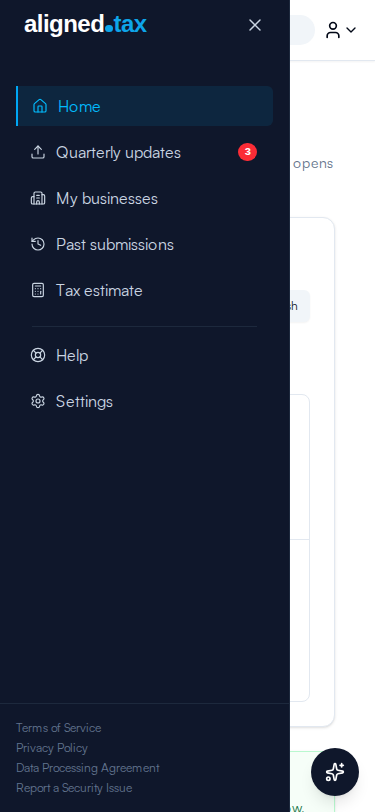
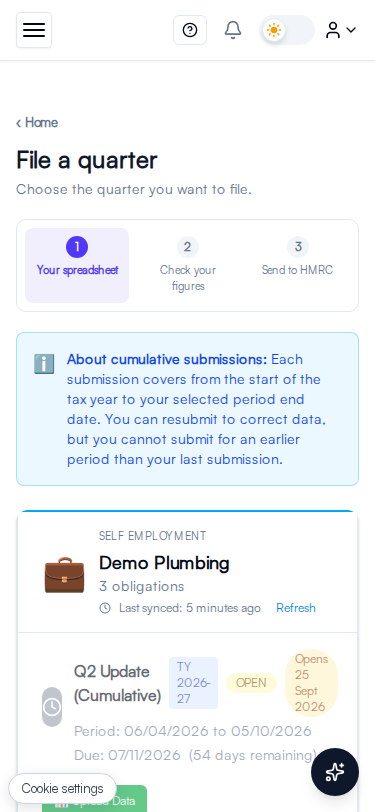
At narrow widths the sidebar hides behind a menu button at the top left. Tap it to slide the sidebar in; tap outside it, or press Escape, to close it.
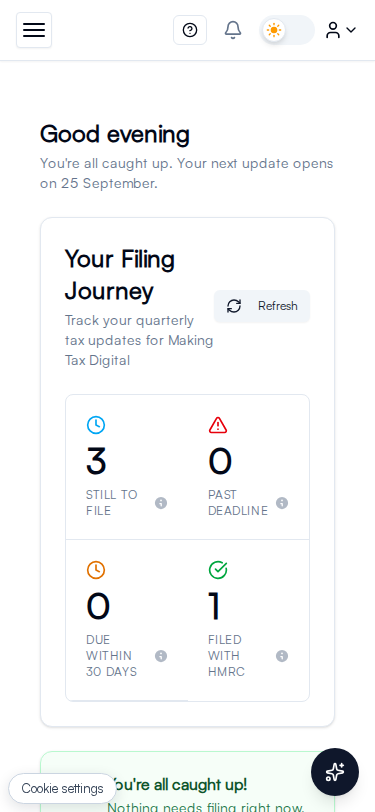
The rest of the app works on a phone too. The dashboard and the quarterly upload stack into a single column at narrow widths:
Things to know
- Two things set the context for every screen: the tax year and, for agents, the client. Check both in the header before uploading or reviewing anything.
- The tax year selector floor is 2026/27. Earlier years cannot be filed through Making Tax Digital for Income Tax, so they are not offered.
- Switching client does not change the tax year, and switching tax year does not change the client.
- Sections you cannot see are not for your account type. Client management only appears for agents; the setup wizard only for individuals.
- The feedback bar at the bottom (“This is a new service”) can be dismissed with its close button.
FAQ
Can I rearrange the sidebar?
No. It is fixed, in the order of the quarterly filing journey.
Where are settings for an agent account?
In the account menu at the top right, under Settings.
Which tax years can I choose?
The current tax year, the next one, and up to two earlier years, but never earlier than 2026/27. As the years pass the list moves forward; the floor stays.