Next Making Tax Digital quarterly update deadline: 7 November 2026.Start filing now

How to fill it in

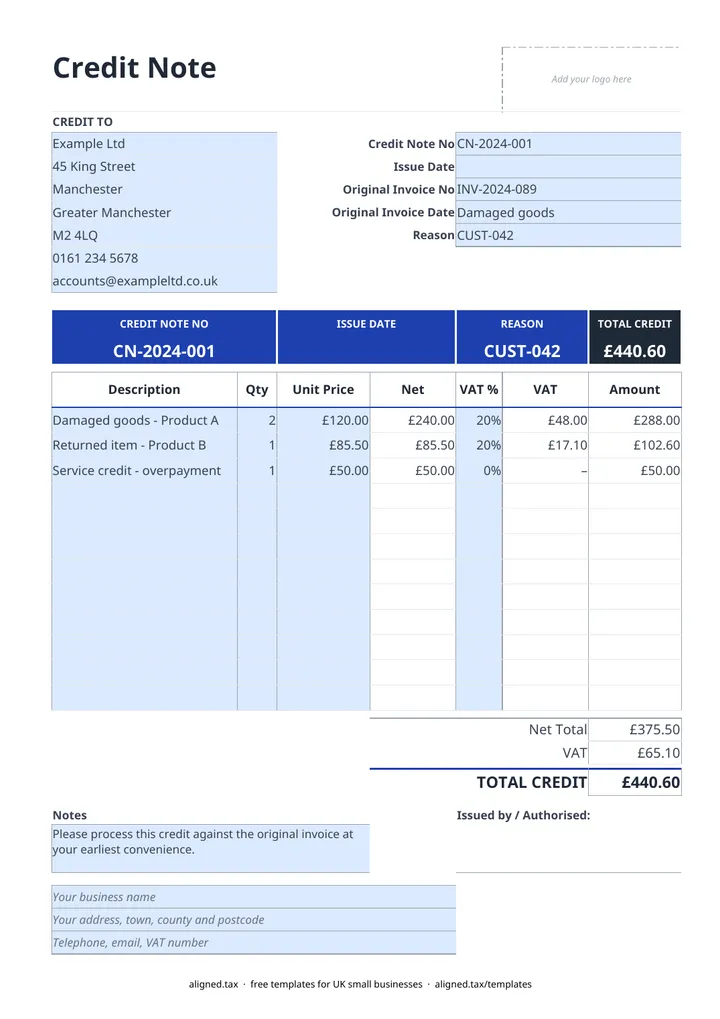
  1. On the Credit Note sheet, type your business name, address and contact details (and VAT number, if registered) into the blue footer lines.

  2. Fill in the CREDIT TO card with the customer's name and address.

  3. Enter the Credit Note No and Issue Date, then the Original Invoice No and Original Invoice Date of the invoice you are correcting.

  4. Type a short Reason, such as 'Goods returned' or 'Overcharge on line 3'.

  5. List what you are crediting with a Description, Qty and Unit Price. Use the same VAT % as the original invoice (20%, 5% or 0%), or leave it blank if you are not VAT-registered.

  6. Check Net Total, VAT and TOTAL CREDIT, then save a copy under the credit note number and send it to the customer.

A credit note reduces or cancels an invoice you have already sent. This free UK template is set up the way HMRC expects: you quote the original invoice number and date, give a reason, list the items being credited and use the same VAT rate as the original. The net, VAT and total credit calculate automatically.

Why use a credit note instead of changing the invoice?

Once an invoice has gone to a customer it should stay as it is. Editing it leaves a gap between your records and theirs, and a VAT-registered customer may already have reclaimed the VAT on it. A credit note keeps both documents in the record and shows exactly what changed and why.

Common reasons include:

  • Goods returned or rejected
  • An overcharge or pricing error
  • A discount or goodwill gesture agreed after invoicing
  • Cancelling an invoice raised in error

Getting the VAT right

If you charged VAT on the original invoice, credit it back at the same rate. HMRC’s general VAT guide (VAT Notice 700) says a credit note must show the rate and amount of VAT credited and identify the original invoice by number and date. Getting this right lets your customer reduce the VAT they reclaimed and lets you reduce the VAT you owe.

If you are not VAT-registered, leave VAT % blank on each line, and the total credit is simply the net amount.

Recording credit notes in your books

Enter a credit note as negative income in your sales records, against the same customer. That keeps your turnover figure accurate, which matters when you compare it with the VAT threshold or report income under Making Tax Digital for sole traders.
Credit note template UK with VAT: FAQs

Is this credit note template free?

Yes. It is free to download; you just enter your email address to get the Excel file.

When should I issue a credit note?

Issue a credit note when you need to reduce or cancel an invoice you have already sent, for example after a return, a price error or a discount agreed later. Do not edit or delete the original invoice; the credit note corrects it.

What must a VAT credit note show?

HMRC guidance says it should show the original invoice number and date, the reason for the credit, the rate and amount of VAT being credited, and the usual details of both businesses. The template has a field for each.

Does a credit note need its own number?

Yes. Give credit notes their own sequence, such as CN-001, CN-002, separate from your invoice numbers, so both runs stay unique.

When it is time to file, use aligned.tax

Keeping your records in Excel? Read our guide to free MTD spreadsheet templates to see how aligned.tax sends your quarterly update to HMRC from an .xlsx file. Free for individuals, see pricing.

Using the Google Sheets copy? Download it as an Excel (.xlsx) file before uploading it to aligned.tax.