Next Making Tax Digital quarterly update deadline: 7 November 2026.Start filing now

How to fill it in

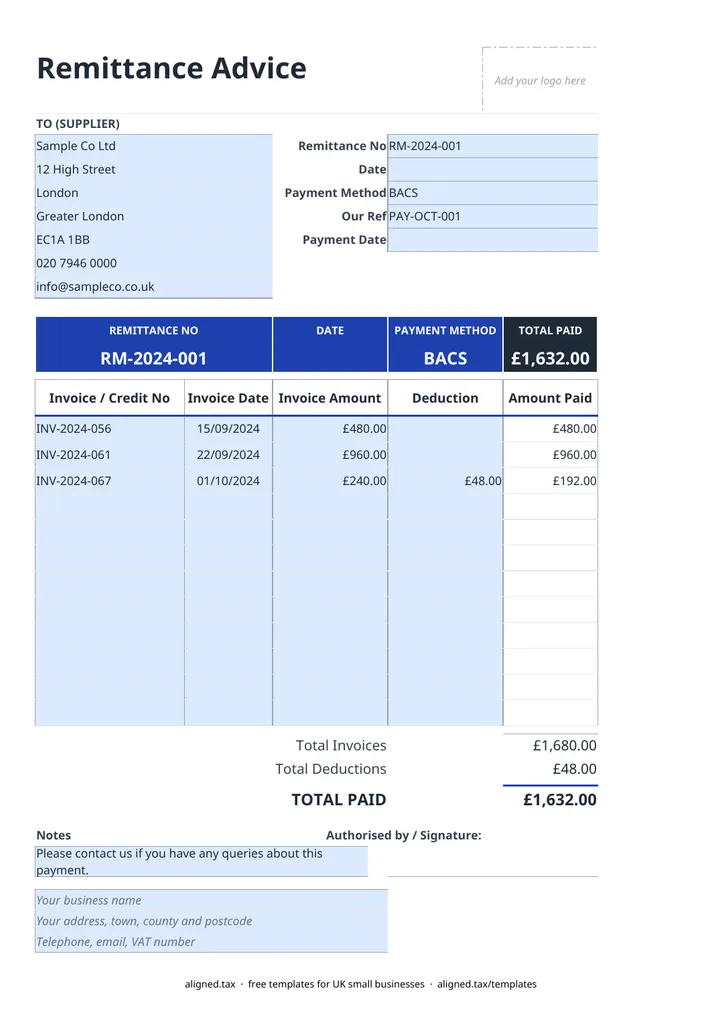
  1. On the Remittance Advice sheet, type your business name, address and contact details into the blue footer lines.

  2. Fill in the TO (SUPPLIER) card with the supplier's name and address.

  3. Enter the Remittance No and Date, choose the Payment Method (BACS, Faster Payment, CHAPS, cheque, cash or card), add Our Ref and the Payment Date the money will be sent.

  4. List each invoice you are paying with its Invoice / Credit No, Invoice Date and Invoice Amount. Enter a credit note as a minus amount.

  5. Add any Deduction against an invoice, such as an agreed discount. Amount Paid works out for each line.

  6. Check Total Invoices, Total Deductions and TOTAL PAID match your bank payment, then email the remittance to the supplier.

A remittance advice tells a supplier that you have paid them and exactly what the payment covers. In this free Excel template you list each invoice being paid, take off any deductions or credit notes, and the total paid calculates automatically. Pick the payment method and date so the supplier can match the money in their bank.

Why send a remittance advice?

A single bank transfer often settles several invoices at once. Without a remittance, the supplier sees one amount and a short bank reference, and has to guess which invoices it clears. A remittance advice removes the guesswork and stops reminder letters for invoices you have already paid.

It is most useful when:

  • One payment covers several invoices
  • You have taken off a credit note or agreed deduction
  • You are paying part of an invoice
  • The bank reference field is too short for all the invoice numbers

Deductions and credit notes

Each line has an Invoice Amount and a Deduction. The Amount Paid on that line is the invoice amount less the deduction, and the totals at the bottom show all three: Total Invoices, Total Deductions and TOTAL PAID. A credit note goes on its own line as a minus invoice amount and shows in brackets.

Always give a reason for a deduction in the Notes box, such as “2% prompt payment discount” or “Short delivery, 4 units”. It saves a phone call later.

Keeping a record

Save each remittance under its number with the supplier invoices it relates to. Together they show what you paid, when and for what, which is the evidence behind the costs in your books. If you are self-employed, Making Tax Digital for sole traders explains how those expense records will be reported to HMRC.
Remittance advice template for supplier payments: FAQs

Is this remittance advice template free?

Yes. It is free to download; you just enter your email address to get the Excel file.

What is a remittance advice?

A remittance advice is a note a customer sends to a supplier saying a payment has been made and which invoices it covers. It lets the supplier allocate the money correctly without having to ask.

Is a remittance advice a legal requirement?

No. It is a courtesy, but it saves time on both sides, especially when one bank payment covers several invoices or has deductions taken off.

How do I show a credit note on a remittance?

Enter it on its own line with its number and a minus amount. It reduces the total, and the template shows it in brackets.

When it is time to file, use aligned.tax

Keeping your records in Excel? Read our guide to free MTD spreadsheet templates to see how aligned.tax sends your quarterly update to HMRC from an .xlsx file. Free for individuals, see pricing.

Using the Google Sheets copy? Download it as an Excel (.xlsx) file before uploading it to aligned.tax.