Next Making Tax Digital quarterly update deadline: 7 November 2026.Start filing now

How to fill it in

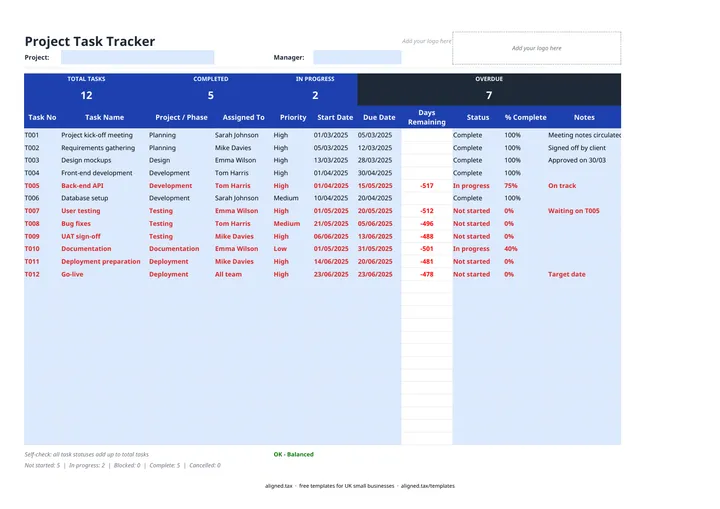
  1. Open the Task Tracker sheet and enter the Project name and the Manager at the top.

  2. Add one row per task, up to 25, with a Task No, Task Name, Project / Phase and who it is Assigned To.

  3. Set the Priority (High, Medium or Low), the Start Date and the Due Date. Days Remaining counts down to the due date from today.

  4. Update the Status (Not started, In progress, Complete, Blocked or Cancelled) and % Complete as work moves on.

  5. Check the band for TOTAL TASKS, COMPLETED, IN PROGRESS and OVERDUE, and read the line under the table, which counts every status and flags any task with no status.

A project task tracker is a single list of every task in a project, who owns it, when it is due and how far along it is. This free Excel template holds up to 25 tasks with priority and status dropdowns. Days remaining count down automatically, overdue tasks turn red, and the band shows total, completed, in-progress and overdue tasks.

What the task tracker shows at a glance

The band at the top answers the questions a manager asks most:

Band figure What it counts
TOTAL TASKS Every row with a Task Name
COMPLETED Tasks with status Complete
IN PROGRESS Tasks with status In progress
OVERDUE Tasks past their due date that are not Complete or Cancelled

Below the table, a status line lists all five statuses, including Blocked, Not started and Cancelled, and a self-check flags any task that has a name but no status.

Keeping a tracker useful

A tracker only helps if it is up to date. A short weekly review works for most small teams: sort by Due Date, chase anything red, and move any Blocked task forward or reassign it. Keep task names specific (“Send kitchen spec to supplier”, not “Kitchen”), so anyone can tell when the task is finished.

The sheet also flags a due date set before the start date, which usually means a typing slip.

Tracking tasks alongside the money

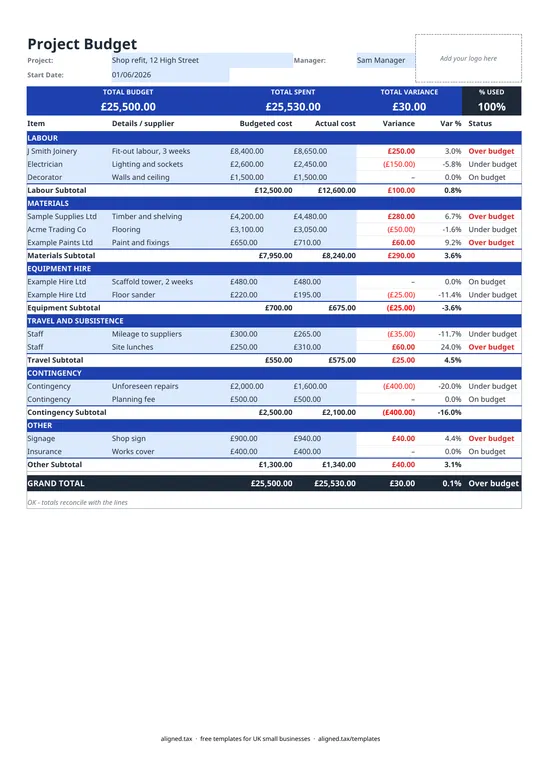
Tasks show progress; they do not show cost. For a client project, pair this tracker with the project budget template so you can see both what is done and what has been spent.
Project task tracker template: FAQs

Is this task tracker template free?

Yes. It is free to download; you just enter your email address to get the Excel file.

When does a task show as overdue?

A task turns red once its due date has passed and its status is not Complete or Cancelled. A task due today shows 0 days remaining and is not yet overdue.

Can I filter tasks by person or status?

Yes. Filters are switched on in the header row, so you can show one person's tasks or only Blocked items while the sheet stays protected.

Is this a Gantt chart?

No. The task tracker is a list for day-to-day progress. If you need to see tasks as bars on a timeline, use the Gantt chart template alongside it.

When it is time to file, use aligned.tax

Keeping your records in Excel? Read our guide to free MTD spreadsheet templates to see how aligned.tax sends your quarterly update to HMRC from an .xlsx file. Free for individuals, see pricing.

Using the Google Sheets copy? Download it as an Excel (.xlsx) file before uploading it to aligned.tax.