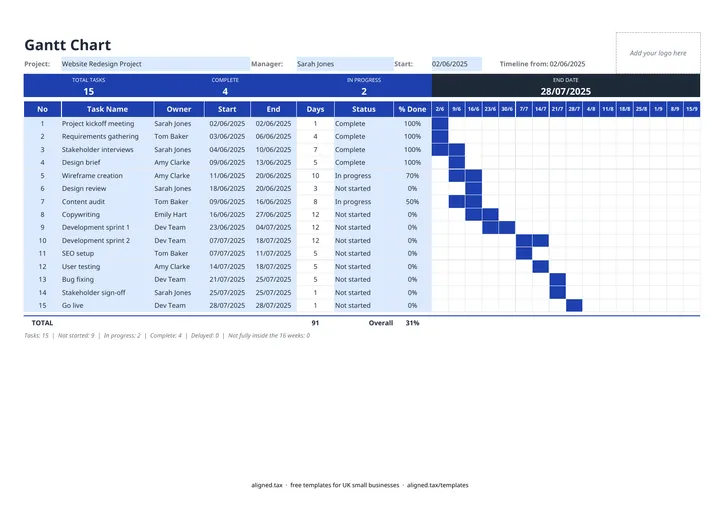
A Gantt chart shows a project’s tasks as bars on a timeline, so you see what happens when. In this free Excel Gantt chart template you type each task’s start and end date and the bars draw themselves across 16 weekly columns. Delayed tasks turn red, and overall progress is worked out from each task’s % done.
How the bars are drawn
Each of the 16 week columns covers seven days from the project start. A task gets a bar in every week it touches, so even a one-day task still shows on the chart. A task spanning four weeks draws one continuous bar.
If you have not fixed a project start date yet, leave Start blank. The timeline then begins at the earliest task start date and shows it under “Timeline from”, so you can plan first and set the official start later.
Reading the chart
| Where to look | What it tells you |
|---|---|
| Red bars | Tasks with the status Delayed |
| END DATE in the band | The latest end date of any task, your projected finish |
| TOTAL row, Overall | Progress across the project, weighted by task length |
| Line under the chart | Task counts by status, and tasks outside the 16 weeks |
The sheet also flags any task whose end date is before its start date.
Gantt chart or task list?
A Gantt chart is best for planning order and timing, such as a kitchen fit, a shop refit or a product launch. For the day-to-day detail of who is doing what, a list is easier to keep up to date. The project task tracker works well alongside this chart.